
Catherine L.
Jun 17, 2026
•9 minutes
Wireless Mechanical Keyboard: How to Choose Right
Choosing a wireless mechanical keyboard? Compare latency, battery life, plate feel, hot-swap, and layouts with real specs to find the right board for you.

Kinetic Labs Whale PBT Keycaps on Wooden Desk
Why Going Wireless No Longer Means Compromising on Feel
The old worry was simple: a wireless mechanical keyboard would feel laggy, mushy, and dead in the middle of a clutch moment. That stopped being true a few years ago, and the numbers say so. A modern 2.4 GHz board polling at 1000 Hz reports your keypress every millisecond, which puts it within roughly half a millisecond of a wired connection. You will not feel that gap. Most people can't perceive a difference under 10 ms, and we are arguing over fractions of one.
Part of why this works is the silicon. Modern wireless keyboards run an ultra-low-power ARM Cortex-M4 chip, the STM32L432, which sips power while staying responsive enough to scan the matrix fast. That combination of low draw and quick scanning is what lets a board stay wireless for weeks without you noticing any sluggishness.
It isn't all solved, though. RGB lighting is still the enemy of battery life. Thick gasket mounts and large aluminum cases can crowd the antenna and weaken signal if a design isn't careful. And RF interference in a busy office is real. So the rest of this guide is a decision framework, not a sales pitch. If you want a broader primer first, our post on things to consider before buying a wireless keyboard pairs nicely with this one.
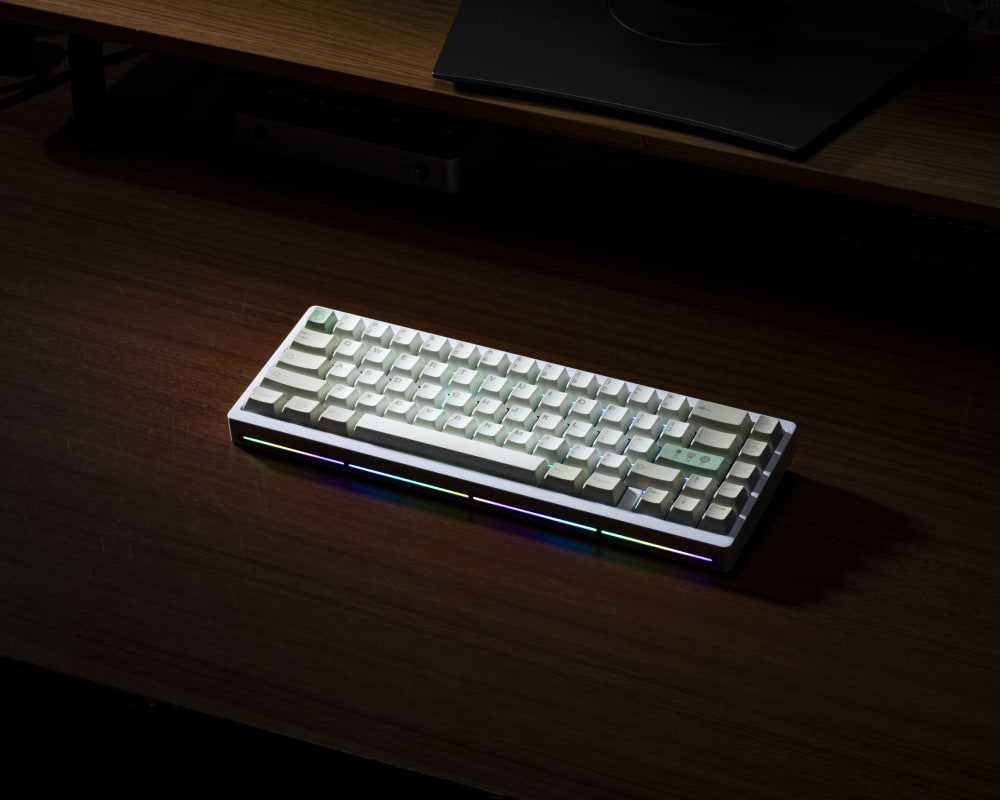
Nut65 Wireless with RGB
Connection Modes Explained: 2.4 GHz, Bluetooth, and Wired USB-C
"Bluetooth is slower" is true but useless on its own. Here is the why. Bluetooth Low Energy talks to your computer on a connection interval that usually lands between 7.5 ms and 125 ms. Even at the fast end, that is several times the 1 ms cadence of a 2.4 GHz dongle. For typing an email you will never notice. For a wireless mechanical keyboard for gaming, that gap matters, which is why competitive players reach for the dongle.
A 2.4 GHz dongle gives you that 1 ms polling, decent range across a desk, and good resistance to interference because it hops channels. Bluetooth 5.x trades raw speed for convenience: you can pair multiple devices and bounce between, say, a Mac and a work PC with a key combo. For office life that multi-device pairing is a genuine workflow win.
Tri-mode is the enthusiast sweet spot: Bluetooth, 2.4 GHz, and wired USB-C in one board. The Kinetic Labs K21 Wireless Numpad is a tidy proof of concept, packing all three modes into 21 keys. A tri-mode wireless keyboard lets you run the dongle at your desk, switch to Bluetooth on the couch, and plug in when you need it.
That wired USB-C fallback is more than a charging port. In an open-plan office crowded with wireless mice, headsets, and routers, 2.4 GHz can get noisy. Dropping a cable in is your insurance policy.

Nut65 Wireless Dongle
Battery Capacity vs. Real-World Battery Life: What the mAh Number Actually Means
Everyone asks how long the battery lasts and almost no review answers honestly, because the honest answer is "it depends on your RGB." Backlight intensity is the single biggest drain. Full per-key brightness can cut runtime by an order of magnitude versus lights off.
Use the specs as anchors. The Built A98 carries a 10,000 mAh cell. Rough math for a 4,000 mAh board: lights off at moderate polling, you might get three to four weeks of typical office use between charges. Turn on per-key RGB at full brightness and that same board can drop to three to five days. The 10,000 mAh A98 stretches those windows much further, which is part of what you pay for.
Firmware reclaims a lot of this. Aggressive sleep timers and auto-off settings shut the board down when you step away, and that recovers real runtime over a week. Every board mentioned here charges over USB-C, so you stay inside the same cable ecosystem and can usually keep typing while it tops up.

A98 Mechanical Keyboard
Plate Materials and How They Shape the Feel of a Wireless Board
Most wireless guides skip plate material entirely, which is a shame because it changes everything about how a board feels and sounds. The Built A98 uses a PC (polycarbonate) plate. PC flexes more than metal, so the bottom-out feels softer and more cushioned. Over a long writing session that reduces finger fatigue, and it dampens sound without you having to stuff the case full of foam.
Aluminum plates are stiffer and louder, with that crisp clack a lot of people chase. Brass is heaviest and gives the most premium, dense sound, but it is unforgiving on bottom-out. On a wireless board specifically, a heavier plate adds weight you have to carry and can shift the center of gravity relative to the battery sitting underneath. A PC plate also resonates a little differently with a large Li-ion cell mounted below it, which matters if you obsess over acoustics. If you want the deeper material breakdown, our overview of keyboard mods covers plate and case tuning in more detail.

Lucky65 V3 with Plate
Switch Selection for Wireless Keyboards: Actuation Force, Travel, and Battery Draw
Switch choice on a wireless board is partly preference and partly use case. Lighter linears around 45g register a keypress efficiently and, in theory, shorten the electrical impulse per stroke. The savings are marginal, but over millions of keystrokes they are not zero. That efficiency, plus the smooth quiet travel, is why 45 to 67g linears dominate wireless office boards.
Clicky switches are anti-social. On a video call or in a shared room, the noise reads as rude, and a board you carry to coffee shops makes that worse. Tactile switches with a 50 to 65g bump are the traveler's compromise: you feel the actuation without announcing it to the room.
One thing that trips up buyers: the Built A98 and the V1 Max are hot-swap, but only for MX-style mechanical switches. They are not compatible with Hall Effect or optical switches. A hot-swap wireless keyboard lets you tune feel later without a soldering iron, which is doubly valuable here because resoldering around wireless PCB components is risky. If you are weighing sockets versus solder, our hot-swap vs soldered PCB post is worth a read.
Layouts and Form Factors: Matching the Board Size to Your Wireless Use Case
Layout is where you should be honest about your desk. A 75% board is the portability sweet spot. The GMK81 keyboard measures 328.5 by 148.7 mm. It fits in a laptop sleeve and keeps the function row through the Fn layer.
A 100% board is for a permanently decluttered desk where you never want to hunt for a separate numpad. The Built A98 is 102 keys, and the GMK104 keyboard runs 446 by 137 mm. These are desk anchors, not bag companions.
The sleeper pick is the Kinetic Labs Stars21 Wireless Numpad at $59.99. It is 21 keys, tri-mode, and meant for anyone on a 75% or TKL who still does number entry. Its extra top row doubles as a macro layer, which is a nice bonus. Browse the full keyboards selection if you want to compare sizes side by side.
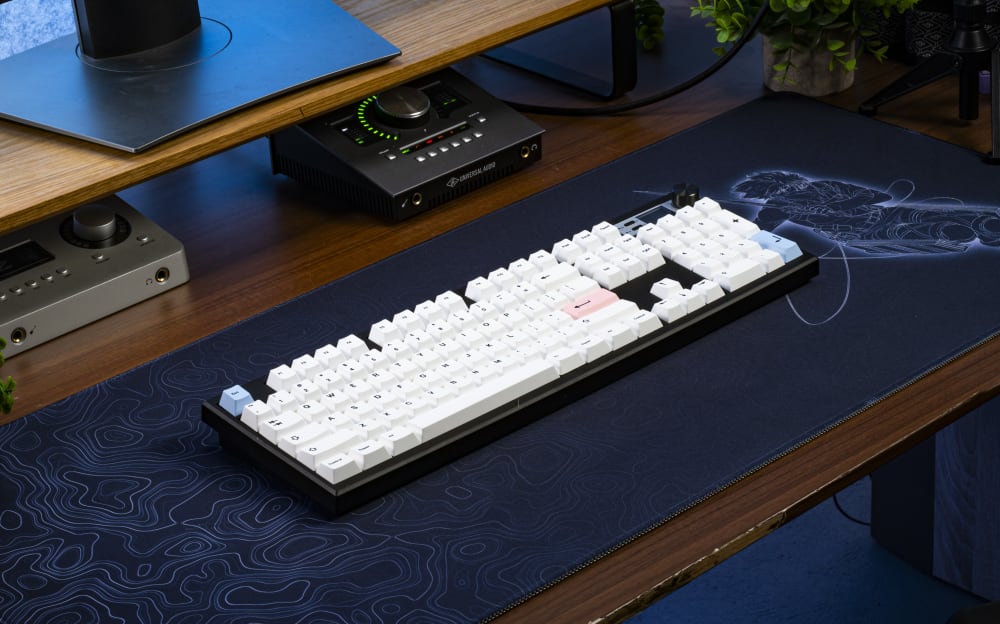
GMK104 Mechanical Keyboard on Desk
Keycap Compatibility and Profile Considerations for Wireless Builds
Wireless boards travel. They get tossed in bags and used in more places than a desk anchor ever sees, so keycap durability earns its keep. The Built A98 ships with PBT keycaps in Chalk or Matcha editions, and PBT resists shine and legend fade far better than ABS. Thicker PBT also dampens sound a touch, which complements that flexy PC plate.
Profile affects comfort, especially on boards with fixed typing angles. The Q1 Max and Q6 Max are fixed at 5.2°, while the V1 Max gives you 3.5°, 7.1°, and 9.5° options. A tall SA profile on a high-angle board can strain your wrists, so match profile height to the angle you actually type at. The K21 Numpad ships without keycaps and takes any standard MX-profile set, so you can match it to whatever board it lives next to.
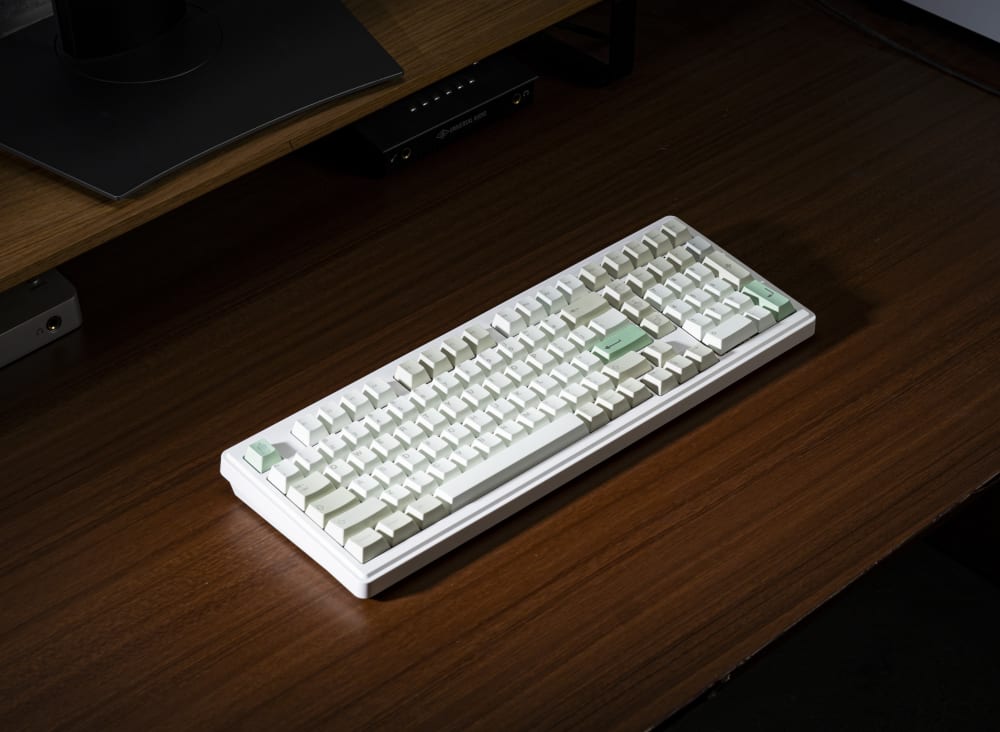
Matcha Edition Built A98 Keyboard
Budget Tiers and What You Actually Get at Each Price Point
Price talk should be specific, not vague hand-waving about getting what you pay for.
A starter budget kit at $64.99 (not including keycaps or switches) is the GMK67.
From $150 to $200 you reach the premium tier. The Built A98 at $159.99 adds the full numpad layout, a 10,000 mAh battery, and a PC plate in a complete built package. For a more premium offering the Built Max102 starts at $229.99.
What climbs with price is real: MCU quality, plate material, PCB finish, and battery size. Pick based on desk permanence and use case, not just budget.

Max102 Chalk Edition
5 Questions to Ask Before You Buy a Wireless Mechanical Keyboard
- Will you use 2.4 GHz or Bluetooth, and do you switch between devices? If you bounce between machines, get tri-mode. (See the connection modes section.)
- How long between charges can you tolerate, and will you run RGB? Lights are the drain. Match mAh to your habits. (See the battery section.)
- Do you want to swap switches later without soldering? If yes, you need hot-swap, and MX-only on these boards. (See the switch section.)
- What layout fits your desk and workflow? 75% travels, 100% anchors, a numpad extends. (See the layouts section.)
- Do you travel with it? Then weight and keycap durability matter more than you think. (See the keycaps section.)
For complementary reading, our older post on 4 things to consider before buying a wireless keyboard is a good companion to this checklist.
A good wireless board no longer asks you to give up feel for freedom. Pick the connection mode, battery, plate, switches, and layout that fit how you actually work, and you will land on the best wireless mechanical keyboard for you, not for a spec sheet.