
Catherine L.
Jun 21, 2026
•8 minutes
Dark Mode Keyboard: Building a Dark Mechanical Board
Dark-mode keyboards for enthusiasts are physical builds, not toggles. Dark keycaps, dye-sub legends, south-facing RGB, and how they tie together to create a dark keyboard.

Code PBT Keycaps from Kinetic Labs
For people who build mechanical keyboards, dark mode isn't a checkbox sitting in a settings menu somewhere, it's a physical thing you put together with your own hands: a deliberate colorway and lighting choice that makes the board itself look, feel, and glow the way a well-designed dark interface does. I'm talking dark base keycaps, high-contrast legends, and backlighting pulled down to a single cool or warm accent rather than a rainbow flood.
So when somebody asks me how to "put a keyboard in dark mode", the honest answer I've landed on after a decade of building these things is that you simply build it. You pick a dark keycap colorway, you decide how the legends sit against that base, and you tune the RGB so it complements the look instead of fighting it. Everything below is about physical keyboards, the actual object on your desk, not a phone app.

Code PBT Keycaps on a Dark Keyboard
Over the years I've come to think the two things that decide whether a board genuinely reads as dark mode are the keycaps and the light. Everything else (the case color, the cable, the desk mat) supports those two. Get the colorway and the RGB right, and the rest tends to fall into place on its own.
The Building Blocks of a Dark-Mode Keyboard: Keycaps First
Your keycaps set the entire tone of a dark keyboard aesthetic before a single LED ever turns on, and I've watched plenty of builds get this backwards by leaning on RGB to do work the caps should have done.

Whale PBT Keycaps on Desk
Dark base, light legend, and why contrast ratio matters for legibility
A well-made dark mode interface doesn't actually print pure white text on pure black, it uses a slightly raised dark base with softened, high-contrast text so your eyes aren't strained over a long session. Keycaps follow exactly the same logic. A dark base with a lighter legend gives you that look without making the board impossible to read once the room lights drop.
WoB keycaps (white legends on black) are the classic version of this and they're genuinely sharp, but I find the contrast can feel a touch harsh against a soft dark-mode desk. Flipping the idea slightly gives you something easier on the eyes. A Chalk PBT set runs black legends on a chalk, off-white base, which reads as the inverse of a black keycap set while holding onto the calm, muted contrast a dark theme is after. If you'd rather keep the base genuinely dark, the broader keycaps selection has a colorway to match whatever case you're working with.

Light Mode Keycap Set: Chalk PBT
PBT and PC keycap material: texture, shine, and longevity in dark colorways
Material decides how a dark colorway ages and how it handles light, and this matters more on dark caps than most people expect. PBT has a slightly textured surface that diffuses RGB softly and resists the greasy shine ABS develops after a few months of use. On a dark surface that shine shows up far more obviously, so the oils your fingers leave behind read like fingerprints on glass. The Chalk PBT set is 1.5mm PBT with that lightly textured finish, which is what I'd want under a board I'm typing on every day.
Polycarbonate keycaps are the other road you can take. PC is shinier and lets more light through, so it pushes RGB harder, but it can look glassy and it shows fingerprints just as readily. For a subdued dark aesthetic, the soft diffusion of textured PBT has always won out for me.

Seal PBT V4 Dark Mode Keycaps
Dye-sublimation and double-shot legends under RGB light
Legend type changes how your board behaves under backlight, which is easy to overlook until you've lived with the wrong choice. Dye-sublimation heat-presses the legend into the keycap surface, so it sits flush and there's no separate plastic layer for light to leak through. Under south-facing RGB that's ideal, because you never get a hot spot glowing up through the character. The Chalk PBT keycaps use dye-sub legends for that exact reason.
Double-shot legends are a separate piece of plastic molded into the cap. They're durable and they'll glow if you light them from below, which is wonderful on a gaming board but works against a clean dark-mode look where you'd rather the legends stayed dark and quiet.
Keycap profile: why Cherry suits a dark setup
Profile is feel and silhouette together. Cherry is a low-to-mid height sculpted profile with the rows angled toward the typist, and it's the one a lot of builders reach for first because it's comfortable and familiar in the hand. Set that against DDA, which is taller, spherical on top, and far more uniform. Neither is wrong, but Cherry's lower stance suits a minimal dark setup where you want the board to sit low and quiet on the desk rather than tower over it. The Chalk PBT set is standard Cherry profile, covers 175 keys for wide layout support, and runs $69.99.
Dialing In Your RGB for a True Dark-Mode Look
Lighting is where I've seen the most builds overshoot. A dark-mode board is not the place for a rainbow wave at full brightness, and the whole job here is restraint.
South-facing and north-facing RGB: why direction changes the vibe
South-facing RGB points the LEDs toward the front edge of the board (the desk side) rather than straight up through the keycap. The GMK67 uses south-facing RGB plus side ambient lights. What you get is a halo of glow around the base of each keycap instead of light blasting through the legend, which is precisely what a dark aesthetic wants. The legends stay dark and readable while the board floats on a soft underglow.
North-facing LEDs shine up and can wash a dark colorway right out, especially with shine-through caps. For an RGB dark mode keyboard, south-facing is the better place to start.
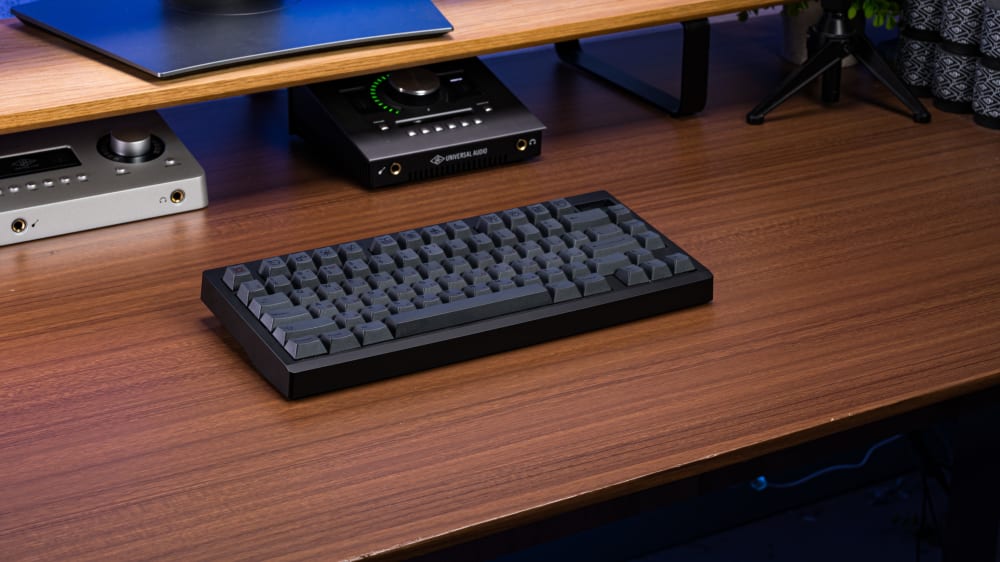
GMK81 Keyboard with Dark Keycaps
Color temperature and hue: cool white, amber, and single-color modes
Drop the brightness first, then pick a single hue. Cool white at low brightness gives you a monochrome feel that reads almost like a screen's own dark theme. If you want something warmer and a little more editorial, a deep amber or a muted purple adds mood without breaking the look. The real trick, and it took me a while to trust it, is committing to one color. A static single-hue profile sitting around 30 to 50 percent brightness reads as intentional. A cycling rainbow never will.
Configuring RGB with keyboard shortcuts, no software needed
People ask whether there's a keyboard shortcut for dark mode, and on the GMK67 the answer is yes in the way that matters here. You cycle the lighting effects, brightness, and color with Fn plus key combinations directly on the board, with no install required. That holds across Windows, macOS, Linux, and anything else you plug it into. There's optional Windows software if you want deeper remapping, but for setting your lighting you never have to leave the keyboard. The GMK67 is a 65% gasket-mounted board with a 3000mAh battery at $64.99.
Customization beyond lighting
The lighting is only one layer of what you can change on a board like this. Because the GMK67 is hot-swappable, you're free to remap keys, adjust layers, and rebind the Fn shortcuts to suit how you actually work, and that customization is where a custom board pulls ahead of a sealed prebuilt. I've tuned the same chassis into three completely different setups over time just by changing caps, switches, and a handful of bindings, and that flexibility is, to me, the whole point.
Pairing Switches with a Dark-Mode Build
Switches don't touch the color of your board, but they decide how it feels to use, and feel is as much a part of the aesthetic as anything you can see.

Gecko Silent Linear Switches
How actuation force and travel shape the feel
A subdued, focused workspace tends to pair well with a switch that doesn't fight you. Lighter actuation in the 45 to 67g range keeps typing effortless over a long stretch at the desk. Heavier springs feel more deliberate, and some people love that, but they can wear on you by the end of a day. There isn't a single correct number, and I've gone back and forth on my own boards for years, so I'd land on whatever sustains the calm, low-distraction mood you're building toward rather than chasing a spec sheet.
Linear and tactile switches for a minimal setup
Linear switches travel smoothly top to bottom with no bump, which gives you uniform, quiet keystrokes that suit a clean dark workspace. Tactile switches add a bump at actuation, usually somewhere around 45 to 60g, and plenty of typists, myself included on certain days, find that feedback energizing rather than distracting. The GMK67 is hot-swappable and takes MX-style switches, so you can try a set, pull them, and tune gram force to taste without ever touching a soldering iron. You pick the switches and the keycaps instead of accepting whatever a prebuilt happened to ship with.
One thing worth separating out, because I've had it happen to me: a board that's gone dark isn't always an aesthetic choice. If your backlight suddenly switched off, that's usually a shortcut toggle or a dead battery rather than a design decision. More on that further down.
Building the Full Dark-Mode Keyboard Setup
Here's how the pieces come together into an actual build.
Form factor: why 65% layouts suit a minimal dark-mode desk
A 65% layout (67 keys on the GMK67) drops the numpad and function row while keeping the arrow keys. Less plastic on the desk, more room for the mouse, and a tighter silhouette that lines up with a minimalist dark-mode desk. I've found compact boards settle into a dark setup more naturally, since there's simply less surface catching light and pulling your eye around.
Step by step: assembling a dark-mode keyboard with the GMK67 and Seal PBT keycaps
- Start with the GMK67. The gasket mount gives a softer, slightly bouncy typing feel that suits the relaxed tone of the build.
- Install your MX-style switches of choice. Hot-swap means no soldering, so press them into the sockets and check that each one seats flat.
- Install the Seal PBT keycaps.
- Program the RGB with Fn shortcuts. Set a single hue at low brightness, or turn it off entirely.
That last step also answers how to get rid of dark mode on a keyboard if you ever want to: kill the RGB completely with a shortcut for an unlit, clean dark-keycap look, or swap to a lighter set.
Desk mat, cable, and peripheral pairings for a cohesive look
Pull the rest of the desk in the same direction. A dark desk mat anchors the board and softens the typing sound, and a coiled cable in a matching tone ties the front of the build together. Our monochrome desk setup guide walks through this thinking in more detail if you want to take the whole surface dark, not just the keyboard.

Marble Liquid Desk Mat